Logo Design & Branding
Today, we will learn about basic branding elements, including colour, font, and imagery, and apply this knowledge to create a simple brand identity. Then we will use digital tools to design a simple logo that represents our brand.
Learning Goals
- Understand basic branding elements (colour, font, imagery)
- Create a simple brand identity
- Design a logo using digital tools in Canva
What is Branding?
Branding is how a product, person, or business is visually represented. It includes:
| Element | Key Concepts |
|---|---|
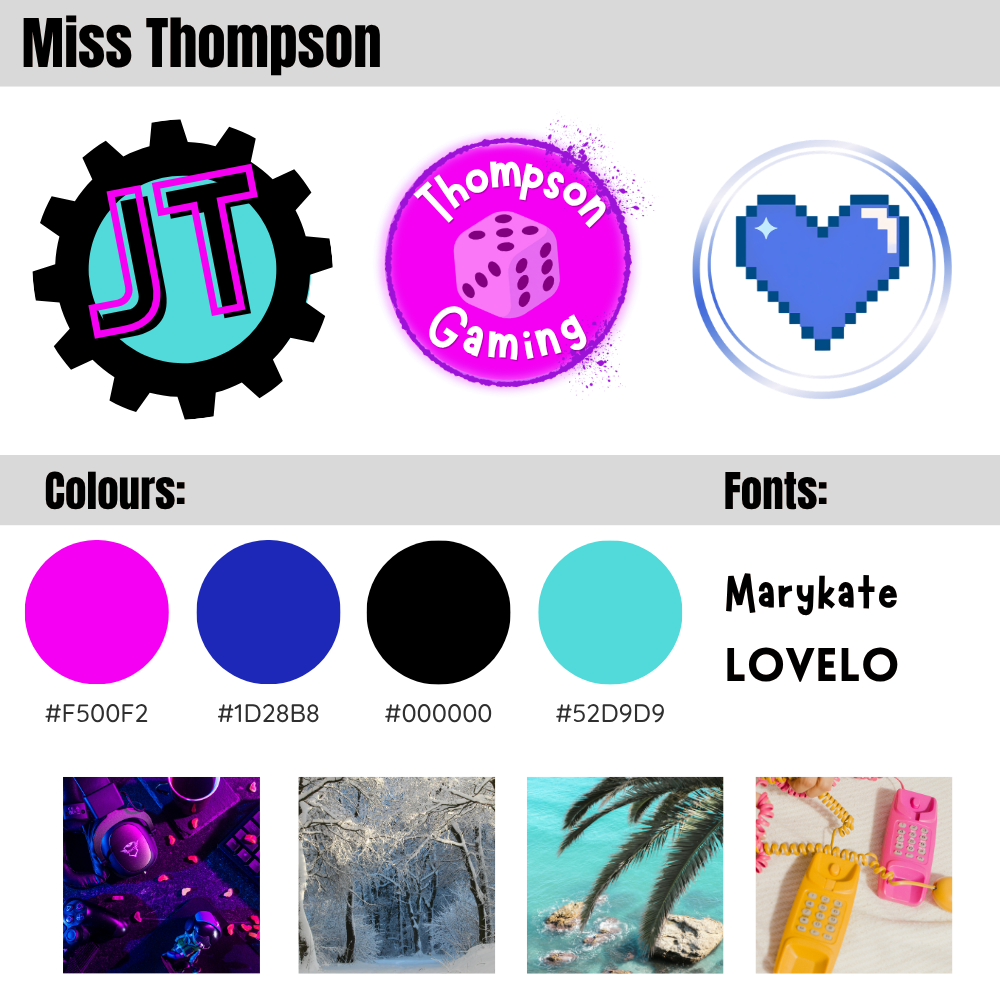
| Colour Palette | A set of 3–5 colours used consistently. Use HEX codes for accuracy. Experiment with the Colour Wheel tool! |
| Fonts | Choose 1–2 fonts. Keep it readable and consistent. |
| Logo Design | Should be simple and clear. Can include text, symbols, or both. |
Brand Template & Logo Design Sample:
Class Activity
Create Your Brand
Click here to open the brand digital template in Canva: Edit Template
Watch the video below to help you fill out the following:
- Name and/or Brand Name
- Example: John D.
- Colours (with HEX codes)
- Example: #FA7AAC
- 1-2 Fonts (Pick 1-2 fonts and write the font name using that exact font)
- Example: Impact / Oswald / Caveat / Lobster
- Add Inspiration images to create a Mood Board that helps inspire your brand development
If you missed the lesson or want a refresher, you can watch this video I recorded to demonstrate how to create a brand planner with a colour palette, font, and moodboard:
Design Your Logo
Use Canva to create 1–3 logo options. Use the colours and font choices from your brand template to guide the creation of your logo.
If you missed the lesson or want to review how to design a logo in Canva, you can watch this video I made on custom logo creation in Canva:
Final Step
Choose your strongest design. Copy your final logo to the second page in the digital template.
Save and export your final designs: Share > Download > PNG > Download
We will combine all of our branding templates into a class “lookbook”. These logos will be used for a fun project in a few weeks’ time. 🙂
Leave a Reply