Today, we will learn about correcting and improving audio quality in video footage directly within Adobe Premiere Pro.
Learning Goals
- Understand how to use the Essential Sound panel to classify and edit audio
- Apply audio correction tools to improve clarity and consistency of sound
- Use audio presets as a starting point and adjust them as needed
Use the Essential Sound Panel
The Essential Sound panel groups tools based on common audio tasks. Open this panel by going to Window > Essential Sound. This allows you to:
- Balance audio levels
- Reduce background noise
- Improve clarity
- Apply quick enhancements
Classify Your Audio
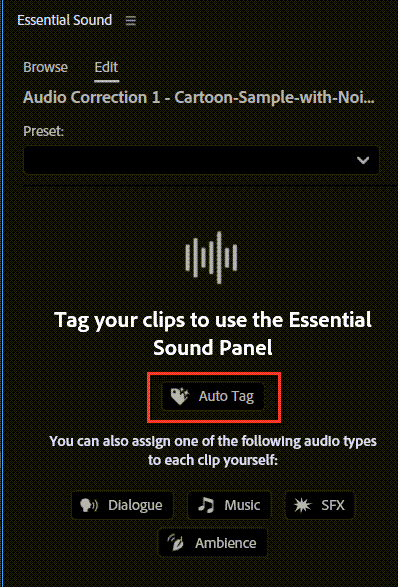
Before editing, you must tell Premiere what type of audio you are working with: Dialogue, Music, Sound Effects (SFX), or Ambience. Once selected, Premiere provides the appropriate tools for that audio type.
Recommended
You can click Auto Tag to ask Premiere to automatically identify the audio type of your footage:
Step 3: Audio Correction (Fix First)
| Tool Category | Functions & Tips |
|---|---|
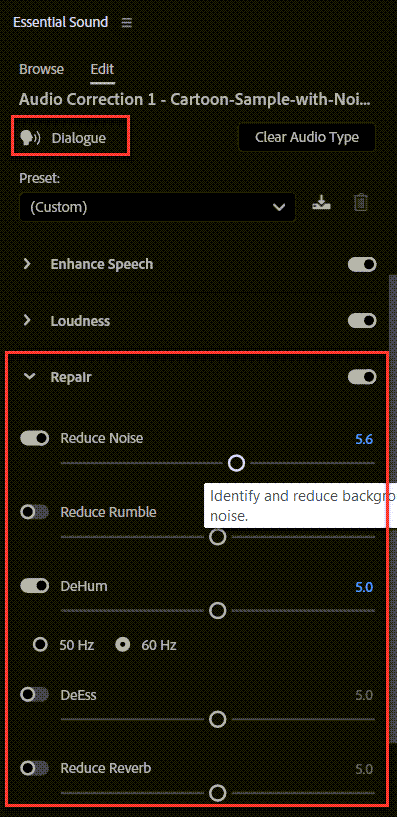
| Enhance Speech | Uses AI to improve clarity. Note: This can be “hit or miss”—don’t rely on it entirely; adjust manually after applying. |
| Loudness | Balances volume. Use Auto-Match to keep dialogue around -6 dB to -12 dB. |
| Repair & Clarity | Reduce Noise, Rumble, and DeEss. Use Compression to balance dynamics and EQ to improve tone. |
Step 4: Presets (Starting Point)
Presets apply a combination of settings automatically. Here are common options available:
- Balanced High/Low Tone Voice: Clarity for different vocal ranges.
- Clean Up Noisy Dialogue: Best for background noise reduction.
- Podcast Voice: Creates a full, professional radio tone.
- Make Close Up / Distant: Adjusts perceived physical distance.
- From Telephone / Radio / TV: Stylistic filters for specific devices.
- In a Large/Small Room: Simulates acoustic environments with reverb.
- Over the Intercom / Background Walla Walla: Environmental effects.
Ready to Start?
Select your clips and open the Essential Sound panel to begin your audio transformation.
Leave a Reply